Get started
Getting started
Verilo installs on your Shopify store, then works in the helpdesk your team already uses. Setup takes about ten minutes, and a short guided setup walks you through it.
Last checked against the product on
On this page
Before you start#
- A Shopify store, and permission to install apps on it (the store owner, or a staff account allowed to install apps).
- Your helpdesk, if you use one: Gorgias, Zendesk or Intercom. You can also work from the Verilo dashboard without a helpdesk.
- A phone with a camera, to try a verification yourself before a customer does.
Install Verilo on Shopify#
Step 1: Open Verilo on the Shopify App Store (opens in a new tab) and click Install.
Shopify shows what Verilo can read: orders, products, fulfilments and tracking, and the customer's name and email on an order. Verilo only reads; it never changes orders or refunds anything in Shopify.
Step 2: Approve a plan in Shopify.
Every plan starts with a 14-day free trial with 20 verifications. Shopify asks you to approve the plan and bills it on your Shopify invoice. Nothing is charged during the trial.
You should see: Shopify returns you to Verilo, on a page called Set up Verilo.
| Plan | Price | Includes |
|---|---|---|
| Starter | $29 a month | 50 verifications a month |
| Growth | $79 a month | 250 verifications a month |
| Scale | $199 a month | 1,000 verifications a month |
Finish the guided setup#
Set up Verilo has four short steps. You can leave at any time with Skip to Home and come back from the setup checklist on Home.
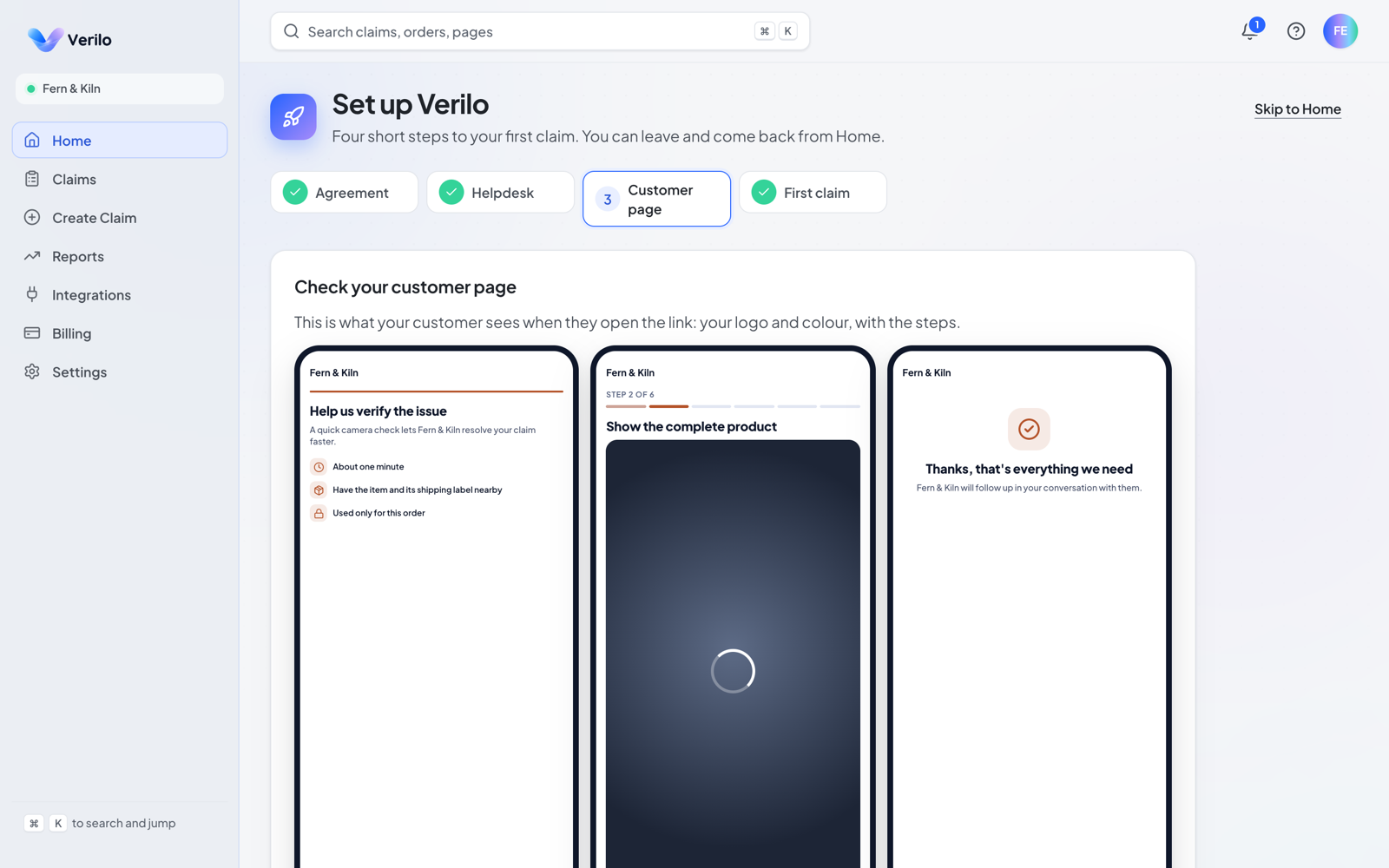
Step 1: Agreement: accept the Data Processing Agreement.
It covers how Verilo handles your customers' recordings and order details for you, and it is needed before your first claim. Click Read the agreement to read it, then Accept and continue.
Step 3: Customer page: check what your customer will see.
The page shows your store's name. Your own logo and colour come with the Growth and Scale plans. Click Looks good, continue.
Step 4: First claim: send a verification to yourself.
Click Choose an order, pick an order whose parcel and label you have to hand, and open the link on your phone. It counts as one verification.
You should see: Your first claim is out, with where the Result will land: on the claim page, on Home, in the ticket, and by email if you choose.
Sign in to Verilo later#
- Store owners: in your Shopify admin, open Apps → Verilo. Or go to verilo.app/login, enter your store address (the one ending in .myshopify.com) and click Log in with Shopify.
- Team members (on the Growth and Scale plans): use the link in your invite email, or on the sign-in page enter your work email and click Email me a sign-in link. The link works once, for 30 minutes.
Your first real claim#
When a customer reports a damaged item, send them a Verification Link: from the Verilo card in your helpdesk ticket, or from Create Claim in the dashboard. The customer opens it on their phone, follows the steps, and the Result arrives in a minute or two. How Verilo works explains each part.