 Integrations
Gorgias integration guide
With Verilo connected, your agents send a Verification Link from the Gorgias ticket, and the evidence and the Result come back to the same ticket. This guide takes you from installing the app to your first verified claim.
Last checked against the product on
On this page
What the integration does#
Verilo adds a Verilo card to the right-hand sidebar of every Gorgias ticket. The card shows the Shopify order the ticket is about and the state of its claim, and lets agents act without leaving Gorgias:
- Send a Verification Link to the customer, as a reply in the ticket.
- Follow the claim through internal notes Verilo posts as it moves: link sent, customer started, Result ready.
- See the Result (Verified, Needs Review or Unable to Verify) with the strong and weak signals, as an internal note and a tag.
- Record the Outcome: Refund Issued and Replacement Sent open the order in Shopify admin, where you act.
Merchants connect it to stop chasing customers for photos: one link collects the label, the packaging, the item and the damage, and the claim arrives in the ticket ready to decide.
- Ticket arrivesThe Verilo card matches the Shopify order.
- Send the linkOne click; Verilo replies in the ticket.
- Customer capturesAbout a minute on their phone.
- Result in the ticketAn internal note and a tag.
- Record the OutcomeFrom the card; refunds stay in Shopify.
Before you start#
| You need | Why |
|---|---|
| Verilo installed on your Shopify store, with a plan approved | Orders, products and tracking numbers come from Shopify. See Getting started. |
| The Data Processing Agreement accepted in Verilo | Needed before the first link can be sent. Accept it in the guided setup or in Settings → Data and privacy. |
| An Admin role in Gorgias | Only Gorgias Admins can install apps from the Gorgias App Store. |
| An Admin role in Verilo | Only a Verilo Admin can connect a helpdesk. The store owner is always an Admin. |
| To be signed in to Verilo in the same browser | Verilo connects Gorgias to the store you are signed in to. Open Verilo from Apps → Verilo in your Shopify admin first. |
Connect Gorgias#
You connect with Gorgias sign-in: you sign in to Gorgias and approve access, and you never copy a key or a password. Start from Verilo or from the Gorgias App Store; both end in the same place.
From Verilo#
Step 1: In Verilo, open Integrations and find the Gorgias card.
In guided setup, the helpdesk step shows the same form.
Step 2: Enter your Gorgias subdomain.
It is the part before .gorgias.com. If your account is acme.gorgias.com, enter acme.
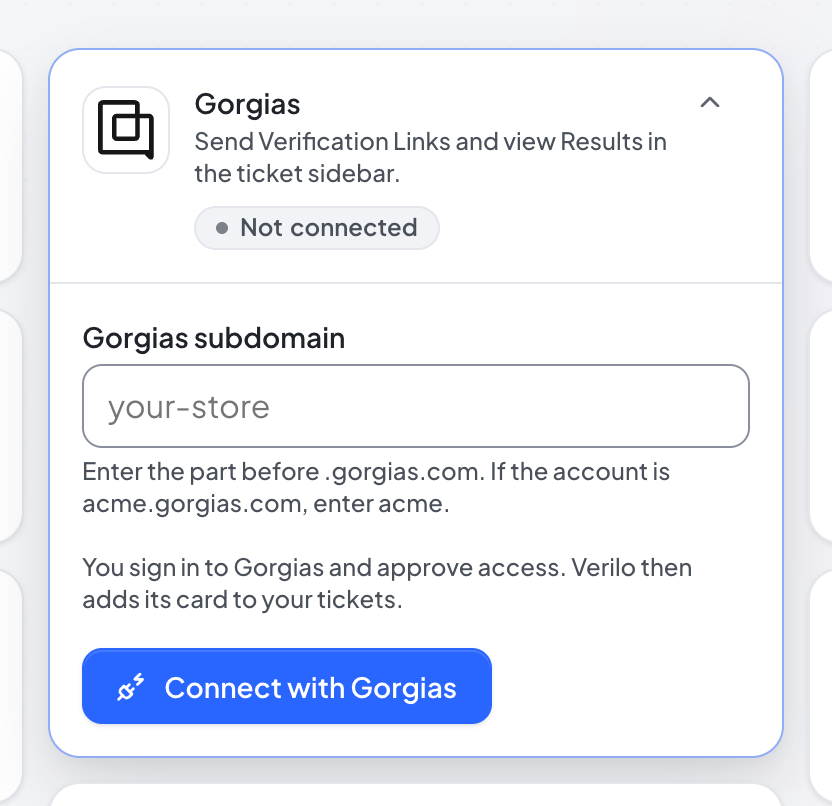
The Gorgias card before connecting. Step 3: Click Connect with Gorgias, then review the access and approve it.
Gorgias shows what Verilo is asking for on your account's own page. What Verilo can access lists each permission in plain words. You have 10 minutes to approve before the request expires.
You should see: Back in Verilo: "Gorgias is connected. The Verilo widget is in your tickets." and the Gorgias card marked Connected.
From the Gorgias App Store#
Step 1: Sign in to Verilo.
In your Shopify admin, open Apps → Verilo. Keep the tab open, and use the same browser for the next steps.
You should see: The Verilo dashboard, signed in to your store.
Step 2: In Gorgias, open Settings → Apps → App Store and find Verilo.
Search for "Verilo" or browse to it, and open its page.
Step 3: Click Connect App.
Gorgias sends you to Verilo with the name of your Gorgias account. Verilo checks that you are signed in as an Admin, then sends you to Gorgias to approve access.
Step 4: Review the access and approve it.
Gorgias shows what Verilo is asking for on your account's own page ({your-account}.gorgias.com). This is called authorization: you are allowing Verilo to work in your Gorgias account, without sharing a password. What Verilo can access lists each permission in plain words. You have 10 minutes to approve before the request expires.
Step 5: Wait for Verilo to finish setting up.
Back in Verilo, the connection is saved and Verilo adds two things to your Gorgias account: an HTTP integration named Verilo, which loads the card, and the Verilo card in the ticket sidebar.
You should see: The Integrations page with the message "Gorgias is connected. The Verilo widget is in your tickets." and the Gorgias card marked Connected.
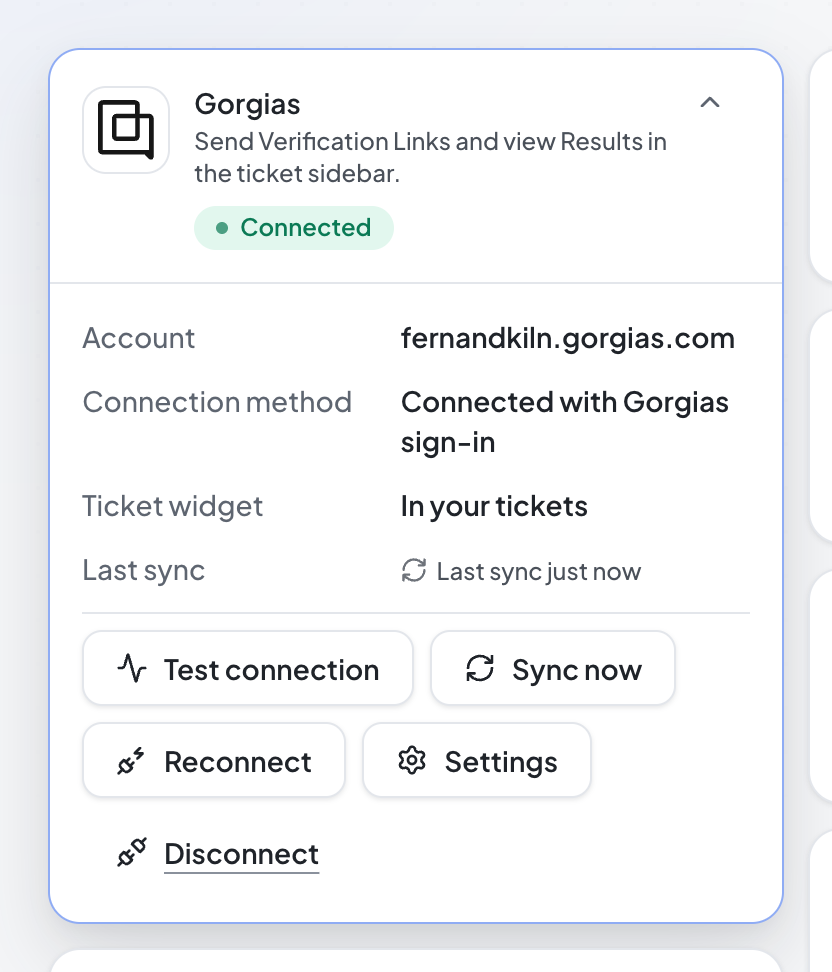
The card shows your Account ({your-account}.gorgias.com), the Connection method ("Connected with Gorgias sign-in"), the Ticket widget ("In your tickets") and the Last sync. It never shows a key or a token.
What Verilo can access#
| Permission | What Verilo uses it for |
|---|---|
| Your Gorgias sign-in (openid, email) | Identifies who approved the connection. Their email is used as the sender when a reply cannot go out as the agent who clicked. |
| Stay connected (offline) | Keeps the connection working without anyone signing in again. |
| Account (read) | The Test connection button. |
| Tickets (read and write) | Reads the ticket and its customer to find the order; posts the reply with the link, internal notes and tags. |
| Tags (write) | Creates Verilo's tags in your account the first time each is used. |
| Integrations (read and write) | Adds and updates the Verilo HTTP integration and its card in the ticket sidebar. |
Verilo does not ask for full access to your account. It never deletes tickets and never changes your customers, macros, rules or other integrations; in a ticket it only adds its reply, internal notes and tags.
Confirm it is working#
Step 1: On the Gorgias card in Verilo, click Test connection.
You should see: "Gorgias answered: connected to {your-account}.gorgias.com."
Test connection on the Gorgias card. Step 2: In Gorgias, open a ticket about a recent order, and reload the page.
The Verilo card loads when a ticket changes: a new ticket, a new message or note, a tag or a status change. For a ticket that has had no activity since you connected, add an internal note or wait for the next message, then reload.
You should see: The Verilo card at the top of the right-hand sidebar, with Order, Matched by and Progress: Not sent yet.
Step 3: Send a test link to yourself.
Use a ticket whose customer email is yours and an order whose parcel you have to hand. Click Send Verification Link, open the link on your phone and follow the steps. It counts as one verification.
You should see: An internal note "Verilo: verification requested…" and the tag verilo-requested on the ticket; then, when you finish, the Result note and its tag.
Use Verilo in Gorgias#
What the Verilo card shows#
| Field | What it shows |
|---|---|
| Order | The order number, item, quantity and value. If nothing matched: "No order matched this ticket. Use Choose order or item, or add the order number to the ticket." |
| Matched by | How Verilo found the order (see below). If the order has several items it adds "check this is the right one". |
| Tracking | Shown only when the order has no tracking number in Shopify, which means the label cannot be matched and the best Result is Needs Review. |
| Delivered | The delivery date, when Shopify has it. |
| Status | Your own Status for the claim, if it has one. |
| Progress | Not sent yet, Link sent, In progress, Link expired, Result ready, Outcome recorded, Cancelled or Processing failed. |
| Sending paused | Why new links cannot be sent right now (see troubleshooting). |
| Result, Summary, Strong signals, Weak signals, Completed | The Result once the customer finishes, with what each check found. |
| Outcome | The Outcome your team recorded. |
| Customer history, Other claims | This customer's other claims with your store, with their Results and Outcomes. |
| Available actions | Which of the card's buttons and links apply right now. |
How the ticket is matched to an order#
Verilo looks for the order in this order, and the Matched by field says which one it used:
- This claim: the ticket already has a claim.
- Chosen for this ticket: an agent picked the order and item with Choose order or item.
- The order number in the ticket: the subject or a message names an order, such as "#1005", "order 1005", "Order no. 1005" or "order number: #A-1005".
- The customer's latest order: the most recent order for the ticket customer's email.
Orders that are not in Verilo yet are looked up in Shopify. If the match is wrong, or the order has several items, click Choose order or item: it opens a page listing the orders named in the ticket and the customer's recent orders, with a search by order number. Pick the order and the damaged item (and how many), click Use this item, then reload the ticket. The next Send Verification Link uses your choice. Nothing is sent from that page.
Send the Verification Link#
Step 1: Check the Order on the card.
It is the order and item the claim will be for.
Step 2: Click Send Verification Link.
Verilo creates the claim and replies to the customer in the ticket, on the ticket's own channel, as you (the agent who clicked).
You should see: The reply with the link in the conversation, an internal note, and the tag verilo-requested.
The reply uses your store's link message from Settings → Messages in Verilo. By default it reads:
You can reword the greeting, introduction and sign-off in Settings → Messages. The instructions, the link and the privacy line are always included.
What the customer does#
The customer opens the link on their phone and follows about a minute of camera steps: the shipping label, the box, the item, the damage close up, a movement around the item and a moment holding still. No app, no account. They never see the Result. How Verilo works shows each step.
How the ticket shows progress#
Verilo posts an internal note each time the claim moves, so the ticket always says where it is. Customers never see internal notes.
| When | Internal note | Tag |
|---|---|---|
| A link is sent | "Verilo: verification requested for order {order} ({item}). The link was sent to the customer and works until {date}." | verilo-requested |
| A new link is sent | "Verilo: a new Verification Link was sent to the customer. It works until {date}. Earlier links no longer work." | |
| The customer opens the link | "Verilo: the customer opened the Verification Link and started the check. The Result follows here when they finish." | |
| The Result is ready | "Verilo Result: {Result}." with the strong and weak signals and a Full evidence link | verilo-verified, verilo-needs-review or verilo-unable-to-verify |
| The link expires before the customer finishes | A note that the link expired, with what to do next | verilo-link-expired |
| An Outcome is recorded | "Verilo: Outcome recorded: {Outcome}, by {agent}. The claim is closed." | |
| The claim is cancelled | "Verilo: the claim was cancelled. The Verification Link no longer works." |
Use the tags in Gorgias views, rules and reports, for example a view of tickets tagged verilo-needs-review.
Read the Result#
The Result note gives the Result, a one-line summary, the strong and weak signals, and a Full evidence link. Full evidence opens the claim in the Verilo dashboard, with every check, photo and timestamp, and the evidence pack to download. It asks you to sign in to Verilo if you are not already.
- Verified
- The evidence is consistent. The item, the label and the damage were shown live, and the independent signals agree.
- Needs Review
- Some evidence is strong and some is missing or unclear. Read the weak signals before you decide.
- Unable to Verify
- The session did not capture enough consistent evidence to verify the issue. This describes the evidence, not the customer.
Record what you decided#
Once the Result is in, record the Outcome from the card. Verilo posts an internal note with the Outcome and who recorded it, and closes the claim.
| On the card | What happens |
|---|---|
| Refund Issued (opens Shopify) | Records the Outcome and opens the order's refund page in Shopify admin, where you issue the refund. |
| Replacement Sent (opens Shopify) | Records the Outcome and opens the order in Shopify admin. |
| Return Required, Claim Rejected, Other | Opens a short Verilo page that asks you to confirm, because it closes the claim. |
| Undo Outcome | Within 24 hours: confirms, then opens the claim again so you can record the right Outcome. |
| Cancel Claim | Before a Result: confirms, then cancels the claim. The customer's link stops working. |
| Open full evidence | Opens the claim in the Verilo dashboard. |
The confirmation pages open in a new tab and say "You can close this tab and return to the ticket." Verilo never refunds, replaces or rejects anything itself.
Re-send a link#
While a claim is open without a Result, Send Verification Link sends the customer a new link and the previous one stops working. Use it when a link expired or the customer lost it.
Send links automatically#
Verilo can send the link from a Gorgias ticket by itself when it matches your rules, such as a tag or words like "damaged". It checks new tickets every two minutes and only sends when it is certain of the order and item. Set it up in Settings → Automatic links: see Automatic links.
Troubleshooting#
The Verilo card does not appear in a ticket#
Why it happens
- The ticket has had no activity since you connected. Gorgias loads the card when a ticket changes.
- The page was open before you connected or reconnected.
- Verilo could not finish adding the card when you connected (the message said "connected, with a problem").
How to fix it
- Reload the Gorgias page.
- Add an internal note to the ticket, or wait for the next message, then reload. New tickets show the card straight away.
- In Verilo, open Integrations and check the Gorgias card says Connected and shows a Ticket widget. If it says "Not set up", click Sync now.
- If the card still does not appear, email hello@verilo.app with your Gorgias account name and the ticket number.
Verilo asked me to sign in, then nothing happened#
What you see
You clicked Connect App in Gorgias and landed on the Verilo sign-in page.
Why it happens
- You were not signed in to Verilo in this browser, so Verilo could not tell which store to connect.
How to fix it
- Open Verilo from Apps → Verilo in your Shopify admin.
- In Gorgias, click Connect App on the Verilo app again.
"The Gorgias connection did not complete (the request expired or did not match)"#
Why it happens
- More than 10 minutes passed between starting the connection and approving, or the approval was opened in a different browser.
How to fix it
- Click Connect with Gorgias on the Gorgias card in Verilo (or Connect App in Gorgias) again, and approve within 10 minutes in the same browser.
"Gorgias access was not approved, so Gorgias is not connected"#
Why it happens
- Access was declined on the Gorgias approval page.
How to fix it
- Click Connect with Gorgias in Verilo (or Connect App in Gorgias) again and approve the access. What Verilo can access explains each permission.
"Gorgias did not say which account to connect"#
Why it happens
- The Verilo install address was opened directly, not from the Gorgias App Store.
How to fix it
- Enter your Gorgias subdomain on the Gorgias card in Verilo and click Connect with Gorgias, or start from Gorgias: Settings → Apps → App Store, open Verilo, click Connect App.
"Only an Admin can change this. Ask the store owner."#
Why it happens
- Your Verilo role is Agent. Connecting a helpdesk needs a Verilo Admin.
How to fix it
- Ask the store owner or another Admin to connect Gorgias, or to make you an Admin in Settings → Team.
"Your Gorgias connection needs to be updated"#
What you see
The Gorgias card in Verilo says Reconnect needed and shows this notice.
Why it happens
- Verilo needs a permission your connection was not approved with, for example after Verilo added a feature.
- Gorgias stopped accepting Verilo's access, for example because Verilo was deleted from Installed Apps in Gorgias.
How to fix it
- Click Reconnect with Gorgias on the card. It keeps your Gorgias account, so there is nothing to type.
- Approve the access on the Gorgias page. Verilo reuses its existing card, so nothing else needs setting up.
- Reload your Gorgias tickets.
"No order matched this ticket"#
Why it happens
- The ticket names no order number Verilo can read, and the customer's email has no orders in your store.
- The customer wrote from a different email address than the one on the order.
How to fix it
- Click Choose order or item on the card, search by order number and pick the item. Then reload the ticket.
- Or add the order number to the ticket (for example "#1005") and reload.
The card warns that the order has no tracking number#
Why it happens
- The order's fulfilment in Shopify has no tracking number, so the label on the parcel cannot be matched.
How to fix it
- Add the tracking number to the fulfilment in Shopify before you send the link, if there is one.
- Without it you can still send the link; the best Result is Needs Review.
The card shows "Sending paused"#
Why it happens
- "Accept the Data Processing Agreement in Settings before creating claims." Use the Accept the agreement link on the card.
- "Choose a Verilo plan in Billing before creating claims."
- "This month's verifications are all used." Change plan in Billing, or wait until the allowance resets.
- "The free trial's 20 verifications are used." New links can be sent when your plan starts, or use Start your plan now on the card.
How to fix it
- Follow the link on the card, or open Billing or Settings → Data and privacy in Verilo as the message says. Links already sent keep working.
Send Verification Link shows an error#
Why it happens
- "The message to the customer could not be sent, so no claim was created." Gorgias refused the reply; the message says why.
- "This ticket has no email address to reply from or to." An email ticket needs your support address and the customer's address on the ticket.
- "The customer has finished; the Result is ready, so there is no link to send."
How to fix it
- For a missing address, reply to the customer once from Gorgias so the ticket has both addresses, then send again.
- If Gorgias refused the reply, check the connection with Test connection in Verilo; if it keeps failing, email hello@verilo.app.
The card does not show the Result or the Outcome I just recorded#
Why it happens
- Gorgias does not redraw the card while the ticket is open.
How to fix it
- Reload the ticket. The internal notes in the conversation are always up to date.
The card says "Verilo could not load this ticket. Reload to try again."#
Why it happens
- Verilo could not read the ticket from Gorgias at that moment.
How to fix it
- Reload the ticket.
- If it keeps happening, click Test connection on the Gorgias card in Verilo. If the test fails, see Reconnect needed.
The Verilo integration or card was deleted or switched off in Gorgias#
Why it happens
- Someone deleted or deactivated the Verilo HTTP integration, or removed the Verilo card from the ticket sidebar, in Gorgias.
How to fix it
- In Verilo, click Sync now on the Gorgias card. Verilo adds back whatever is missing, checks it points at your store, and says what it added: "Verilo added its integration and ticket widget to Gorgias again."
- Reload your Gorgias tickets.
- If Sync now says the connection needs to be updated, see Your Gorgias connection needs to be updated.
The claim page says "Ticket not updated"#
Why it happens
- Verilo could not write a note or tag to the Gorgias ticket, even after retrying over several hours.
How to fix it
- Click Test connection on the Gorgias card. Reconnect if it fails.
- The claim itself is up to date in Verilo; open it from Home.
Disconnect or reconnect#
Disconnect from Verilo#
Step 1: In Verilo, open Integrations and find the Gorgias card.
Step 2: Click Disconnect and confirm.
Verilo asks: "Disconnect Gorgias? The Verilo widget leaves your tickets and Results are no longer posted there. Claims and evidence stay in Verilo."
You should see: "Gorgias is disconnected." Verilo removes its HTTP integration from Gorgias, gives up its access, and forgets the connection.
Claims, evidence and Results stay in Verilo, and the notes and tags already on tickets stay in Gorgias. If Verilo could not remove something from Gorgias, the message says what to delete by hand, for example under Settings → Integrations → HTTP or Settings → Apps → Installed Apps in Gorgias.
Remove Verilo from Gorgias#
In Gorgias, open Settings → Apps → Installed Apps, select Verilo and click Delete app. The next time Verilo uses the connection, within a day, it shows the Gorgias card as Reconnect needed. To keep things tidy, disconnect from Verilo first.
Reconnect#
Click Reconnect (or Reconnect with Gorgias) on the Gorgias card in Verilo, or Connect App on the Verilo app in the Gorgias App Store with Verilo signed in. Verilo reuses its card in your tickets, so nothing needs setting up again.
Advanced: stores connected with a REST API key#
Stores that connected before Gorgias sign-in was available may use a Gorgias REST API key. Those connections keep working, and their card says Connection method: REST API key (legacy). To switch, click Reconnect with Gorgias on the card: Verilo keeps its card in your tickets and uses Gorgias sign-in from then on. Such a store can still update its key under Legacy connection on the card. A store connected with Gorgias sign-in cannot switch back to a key, and new stores connect with Gorgias sign-in only.