Verifications
Verifications
A claim is one damaged item on one order. Each claim gets a Verification Link for the customer, then a Result, then your Outcome. This page covers each stage and the settings that shape it.
Last checked against the product on
On this page
The words Verilo uses#
- Claim
- A customer's report that an item from an order arrived damaged. One claim covers one item (and how many of it were damaged).
- Verification Link
- The link the customer opens on their phone to do the capture. Each new link replaces the one before it.
- Result
- What the capture showed: Verified, Needs Review or Unable to Verify, with each check explained.
- Outcome
- What your team decided: Refund Issued, Replacement Sent, Return Required, Claim Rejected or Other.
- Status
- Your own label for where a claim is in your process, such as Open or On hold. Customers never see it.
Create a claim#
From a helpdesk ticket, click Send Verification Link in the Verilo card: Verilo creates the claim and sends the link in one step. See your helpdesk's guide under Integrations.
From the Verilo dashboard:
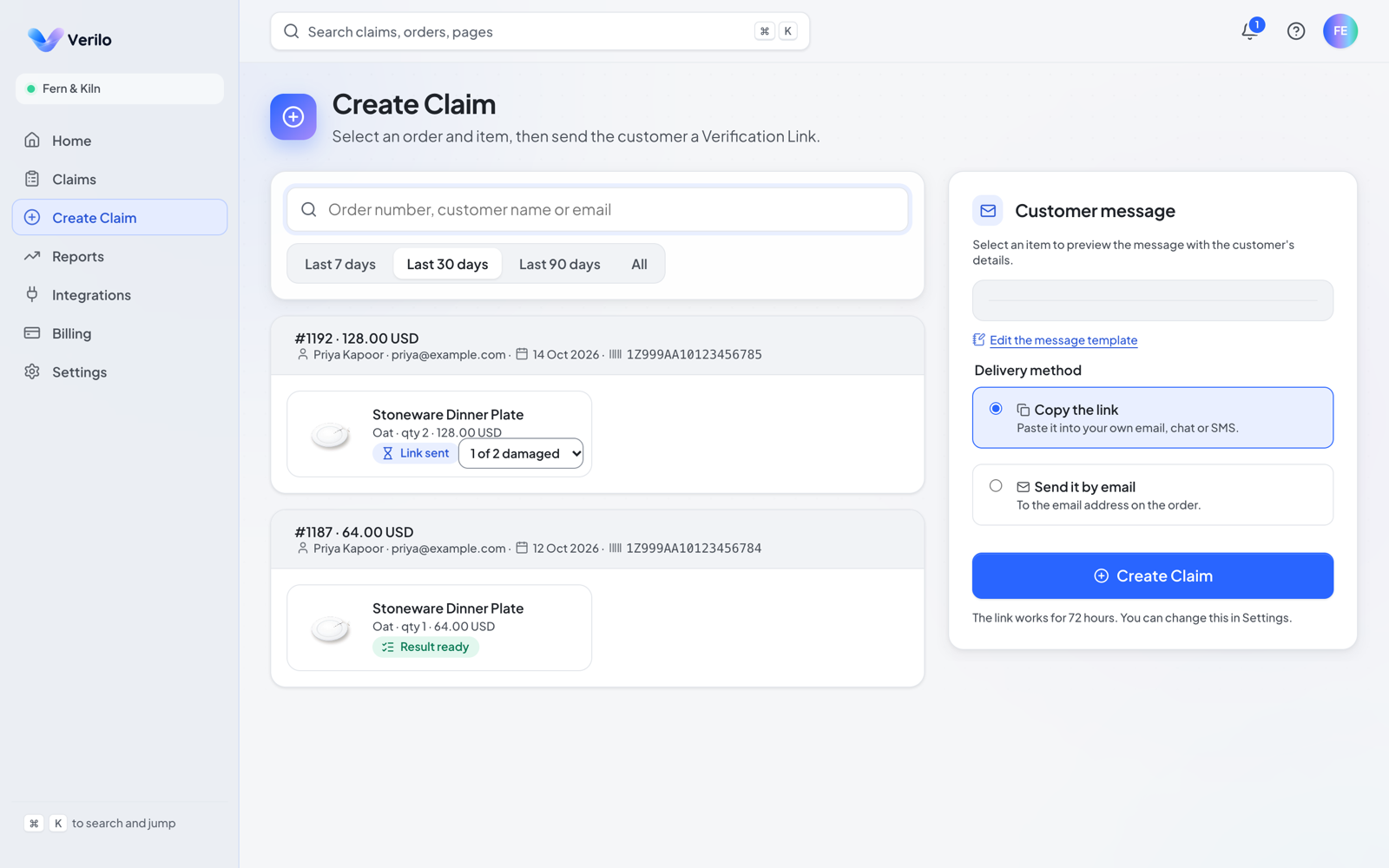
Step 1: Click Create Claim.
Or press N anywhere in the dashboard.
Step 2: Find the order.
Search by order number, customer name or email. An order that is not in Verilo yet is looked up in Shopify when you search by its number or the customer's email.
Step 3: Choose the item.
If several of the same item arrived damaged, choose how many.
Step 4: Choose how the customer gets the link.
Copy the link to paste into your own email, chat or SMS, or Send it by email to the email address on the order.
Step 5: Click Create Claim.
You should see: "Claim created", with the link to copy, or a note that it was emailed to the customer.
Follow a claim's progress#
| Progress | What it means |
|---|---|
| Not sent yet | No link has gone to the customer. |
| Link sent | The customer has a link and has not started. |
| In progress | The customer has started the capture. |
| Link expired | The link ran out before the customer finished. Re-send to give them a new one. |
| Result ready | The customer finished and the Result is in. |
| Outcome recorded | Your team recorded what it decided. The claim is closed. |
| Cancelled | The claim was cancelled and its link no longer works. |
| Processing failed | The customer finished but Verilo could not process the recording after three tries. Re-send to give them a new link; the Verilo team is alerted. |
A customer who stops part-way can open the same link again. Within 10 minutes they pick up where they left off; after that the steps start again, and the link still works.
Link expiry and reminders#
A link works for 72 hours by default. You can choose 24 hours, 48 hours, 72 hours, 5 days, 7 days, 14 days in Settings → Customer check → Link expiry. Verilo emails the customer up to two reminders before the link expires (choose Off, One or Two under Reminders). Reminders go only when the order has an email address; either way, the ticket gets a note.
Re-send, cancel or delete#
- Re-send gives the customer a new link. The previous link stops working. In a helpdesk ticket, Send Verification Link re-sends while the claim is open without a Result.
- Cancel claim works until a Result exists. The customer's link stops working, and this cannot be undone.
- Delete claim (Admins only, on the claim page) removes the claim and all its evidence: recordings, photos, the Result and notes. This cannot be undone.
Read the Result#
Open the claim page from Home, the claims list, or Open full evidence in the ticket. The Result is at the top, with a suggested next step. Below it, each check shows Strong, Weak, Failed or Not applicable, with its reason, and the evidence timeline shows every step of the capture with its photos and the time each was taken.
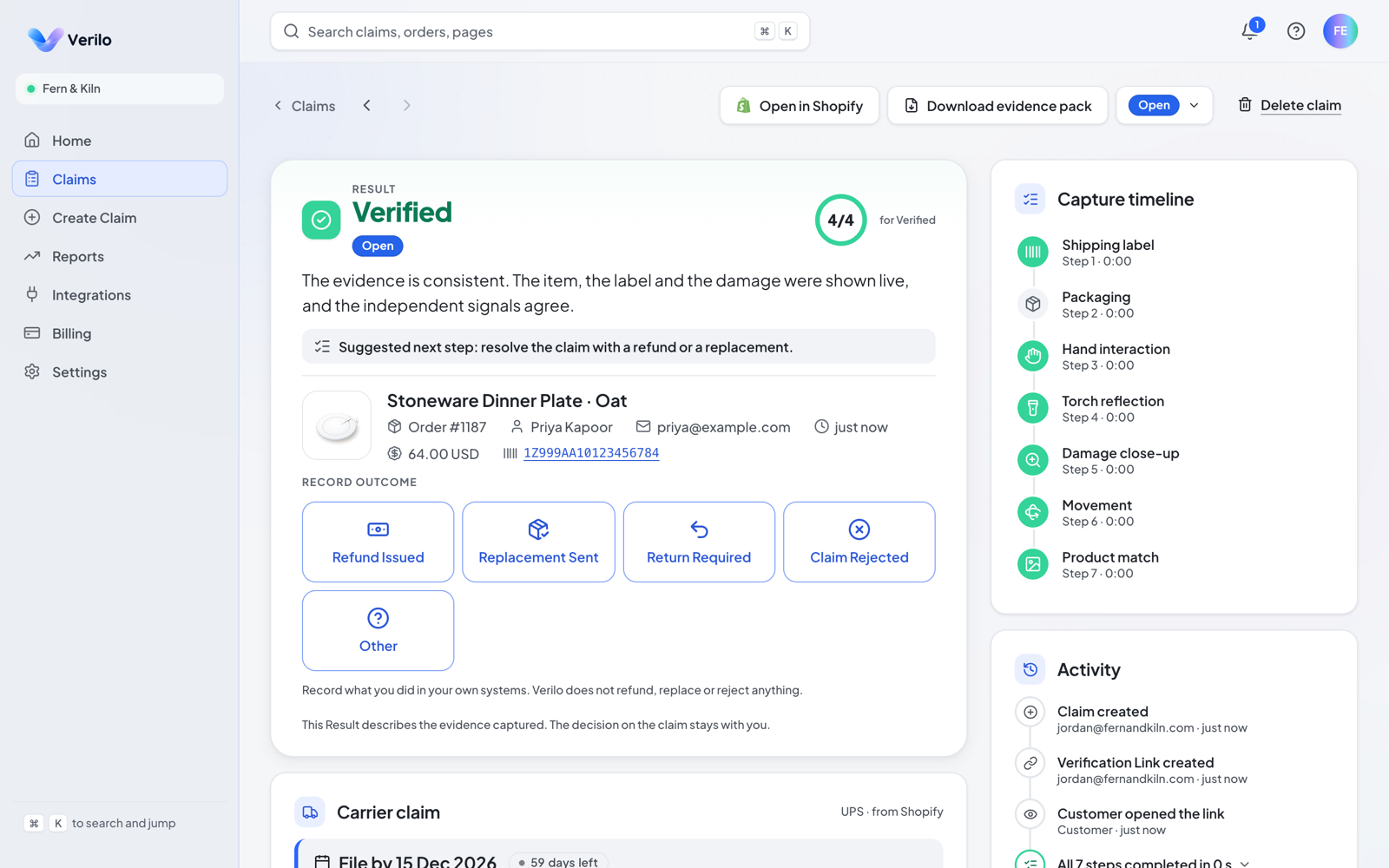
How Verilo works explains what each Result means.
The evidence pack#
Once a claim has a Result, click Download evidence pack on the claim page for a PDF with the Result, the order and shipment from Shopify, the evidence photos for each check, the session timestamps and a SHA-256 fingerprint of each file. Each download is recorded in Verilo's audit log.
Carrier claim pack#
On the Growth and Scale plans, a claim whose damage happened in transit offers Download claim pack: the carrier's deadline, the filing page, the claim form fields filled from the order, and the timestamped photos. Verilo prepares the pack; you file it with the carrier. Verilo does not file claims or receive any payment. It is offered on Verified claims, and on Needs Review too if you turn that on in Settings → Customer check.
Record an Outcome#
When your team has decided, record it on the claim page under Record Outcome, or from the Verilo card in the ticket. Recording an Outcome closes the claim.
| Outcome | Use it when |
|---|---|
| Refund Issued | You refunded the customer. From a helpdesk ticket this also opens the order's refund page in Shopify admin. |
| Replacement Sent | You sent a replacement. From a helpdesk ticket this also opens the order in Shopify admin. |
| Return Required | You asked for the item back before deciding. |
| Claim Rejected | You declined the claim. |
| Other | Anything else. Available from the helpdesk card. |
Statuses and Requires attention#
Statuses are your own labels for your process. Every store starts with Open (where new claims start), On hold, Escalated and Closed (where recording an Outcome moves a claim). Change them in Settings → Statuses. A Status never changes the Result and is never shown to the customer.
Requires attention on Home lists claims that need someone, for example a link that was never opened, a link about to expire, a customer who stopped part-way, or a Needs Review claim with no Outcome. Choose which conditions count in Settings → Requires attention.
Settings that shape a verification#
| Setting | Where | What it does |
|---|---|---|
| Link expiry | Settings → Customer check | How long a link works: 24 hours, 48 hours, 72 hours, 5 days, 7 days, 14 days. |
| Reminders | Settings → Customer check | Off, One or Two reminder emails before the link expires. |
| Capture steps | Settings → Customer check | Movement and Hand interaction can be left out. The label, the product, the damage close-up and the phone's light always run, because the Result depends on them. |
| Packaging photos | Settings → Customer check | Whether the customer shows the box. On by default. |
| Messages | Settings → Messages | The wording of the link message and reminders, in your store's voice. Verilo's instructions, the link and the privacy line are always included. |
| Branding | Settings → Branding | Your logo and colour on the customer's capture page (Growth and Scale plans). |
| Automatic links | Settings → Automatic links | Rules that send the link from a ticket by themselves. Works with Gorgias and Zendesk. |
| Media retention | Settings → Data and privacy | How long raw recordings and photos are kept: 90, 180, 365 days (default 90). Results, checks and fingerprints stay. |
Automatic links#
Automatic links send the Verification Link from a ticket by themselves when a rule matches: a tag on the ticket, or words such as "damaged" or "broken", with an optional minimum item value. Verilo sends only when it is certain of the order and item; otherwise it leaves the ticket to your team with a note saying why, and the tag verilo-check-order.
Step 1: Open Settings → Automatic links (Admins).
Step 2: Add your rules.
When the ticket has one of these tags, Or the ticket mentions, and Only when the item is worth at least (optional). Click Save rules.
Step 3: Click Preview the last 30 days.
See how many tickets the rules would have matched, sent, and left to your team.
Step 4: Click Turn automatic links on.
You should see: "Automatic links are on. Tickets from now on are checked every two minutes."