Get started
How Verilo works
Instead of asking for a photo, Verilo asks the customer to show the item to their phone camera, live, one step at a time. Verilo checks what it sees against the order and gives your team a Result to decide on.
Last checked against the product on
On this page
The flow#
- Link sentFrom the ticket or the dashboard.
- Live captureThe customer follows the steps on their phone.
- ChecksLabel, item, light and movement.
- Result in the ticketWith each check explained.
- Your decisionRecorded as an Outcome.
What the customer does#
The customer gets a short message in your store's name with a link. They open it on their phone. There is no app to install and no account to create. It takes about a minute.
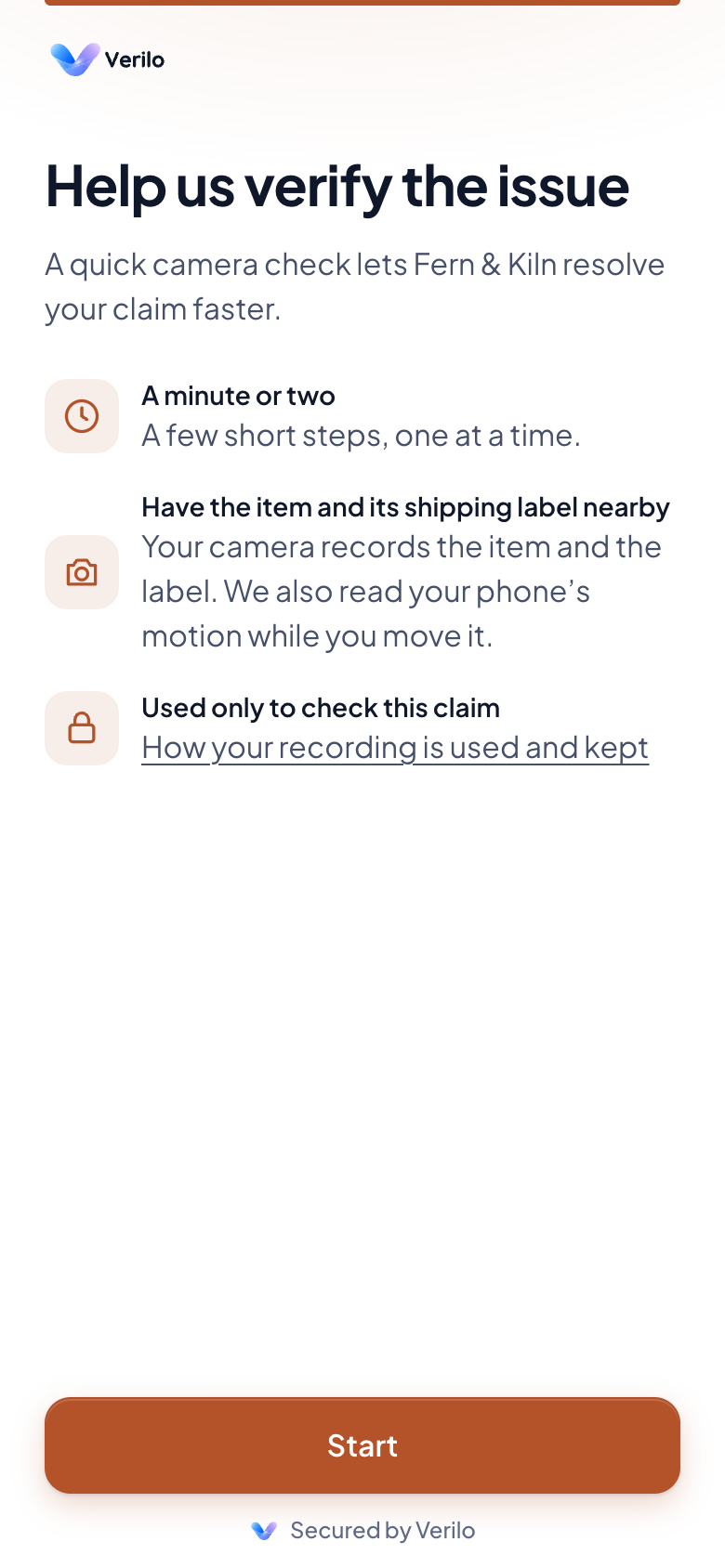
Step 1: They allow the camera.
The browser asks for camera access. The camera only records while a step is on screen. Some steps also ask to read how the phone moves; the customer can say no and still finish.
Step 2: They show the shipping label.
The label always comes first, so Verilo can match the parcel to the order. A customer without the label can say why and carry on.
Step 3: They show the box it came in.
The outside, a damaged side and the packing inside, while the box is still at hand. You can turn this step off.
Step 4: They show the item and the damage.
The whole item, the damage close up, a finger beside the damage, moving around the item, and holding the phone still near it. The order of these steps varies from one capture to the next.
Step 5: The recording uploads.
Then the customer sees "Thanks, that's everything we need". They never see the Result: you follow up in your own conversation with them.
What Verilo checks#
| Check | What it shows |
|---|---|
| Shipping label | The barcode on the label is read and matched to the tracking number on the Shopify order, tying the parcel to this order. |
| Product match | The item is compared with your product's images in Shopify, so a different product does not pass. |
| Torch reflection | The phone's light blinks and a real surface reflects it as it changes, which footage on a screen is hard to match. |
| Movement | Depth that shifts as the phone moves shows a physical object rather than a flat photo or a screen. |
| Damage close-up | The approach to the damaged area is physical, not a digital zoom. |
| Hand interaction | A person is handling the item during the capture. |
Each check is graded Strong, Weak, Failed or Not applicable, with its reason in plain words. Nothing is a hidden score.
The three Results#
- Verified
- The evidence is consistent. The item, the label and the damage were shown live, and the independent signals agree. Suggested next step: resolve the claim with a refund or a replacement.
- Needs Review
- Some evidence is strong and some is missing or unclear. Suggested next step: open the checks that did not pass, then decide. If they leave doubt, ask for the item back or send a new Verification Link.
- Unable to Verify
- The session did not capture enough consistent evidence to verify the issue. This describes the evidence, not the customer. Suggested next step: contact the customer before deciding.
When a claim can be Verified#
- The label barcode matches the order's tracking number.
- The light check passed.
- The item matches the product image.
- Every step was finished.
If the order has no tracking number in Shopify, the label cannot be matched, so the best Result is Needs Review. If the product has no image in Shopify, the item is checked for shape only. If the phone's browser cannot control its light, the light check is skipped and the best Result is Needs Review.
Where the Result appears#
- In the ticket: an internal note with the Result and its strong and weak signals, and a tag your helpdesk views and rules can use.
- On the claim page in the Verilo dashboard, with every check, the evidence timeline and the photos.
- On Home, where Needs Review claims and anything waiting on the customer appear under Requires attention.
- By email, if you choose, in Settings → Notifications.
Next: Verifications covers claims, links, Outcomes and the evidence in detail.