 Integrations
Zendesk integration guide
With Verilo connected, the Verilo app sits in your Zendesk ticket sidebar. An agent adds the Verification Link to their own reply, and the Result comes back to the same ticket as an internal note.
Last checked against the product on
On this page
What the integration does#
- The Verilo sidebar app in every ticket shows the Shopify order the ticket is about, the claim's progress, the Result and the Outcome buttons.
- Send Verification Link adds the link and your store's message to the agent's public reply. The agent submits the reply, so the customer hears from your team.
- Internal notes and tags record each step: link sent, customer started, Result ready, Outcome recorded.
- Refund Issued and Replacement Sent open the order in Shopify admin, where you act.
Before you start#
| You need | Why |
|---|---|
| Verilo installed on your Shopify store, with a plan approved | Orders, products and tracking come from Shopify. See Getting started. |
| The Data Processing Agreement accepted in Verilo | Needed before the first link. |
| Admin access in Zendesk | To create an OAuth client and upload an app in Admin Center. |
| A Zendesk plan that allows private apps | Suite Growth or above, or Support Professional or above. Suite Team and Support Team do not allow private apps, so the sidebar app cannot be installed on them. |
| An Admin role in Verilo | Only a Verilo Admin can connect a helpdesk. |
| About 10 minutes | Once, for your whole team. |
Connect Zendesk#
In Verilo, open Integrations, find Zendesk and click Set up Zendesk. The page lists the three steps below with the exact values to copy, each with a Copy button.
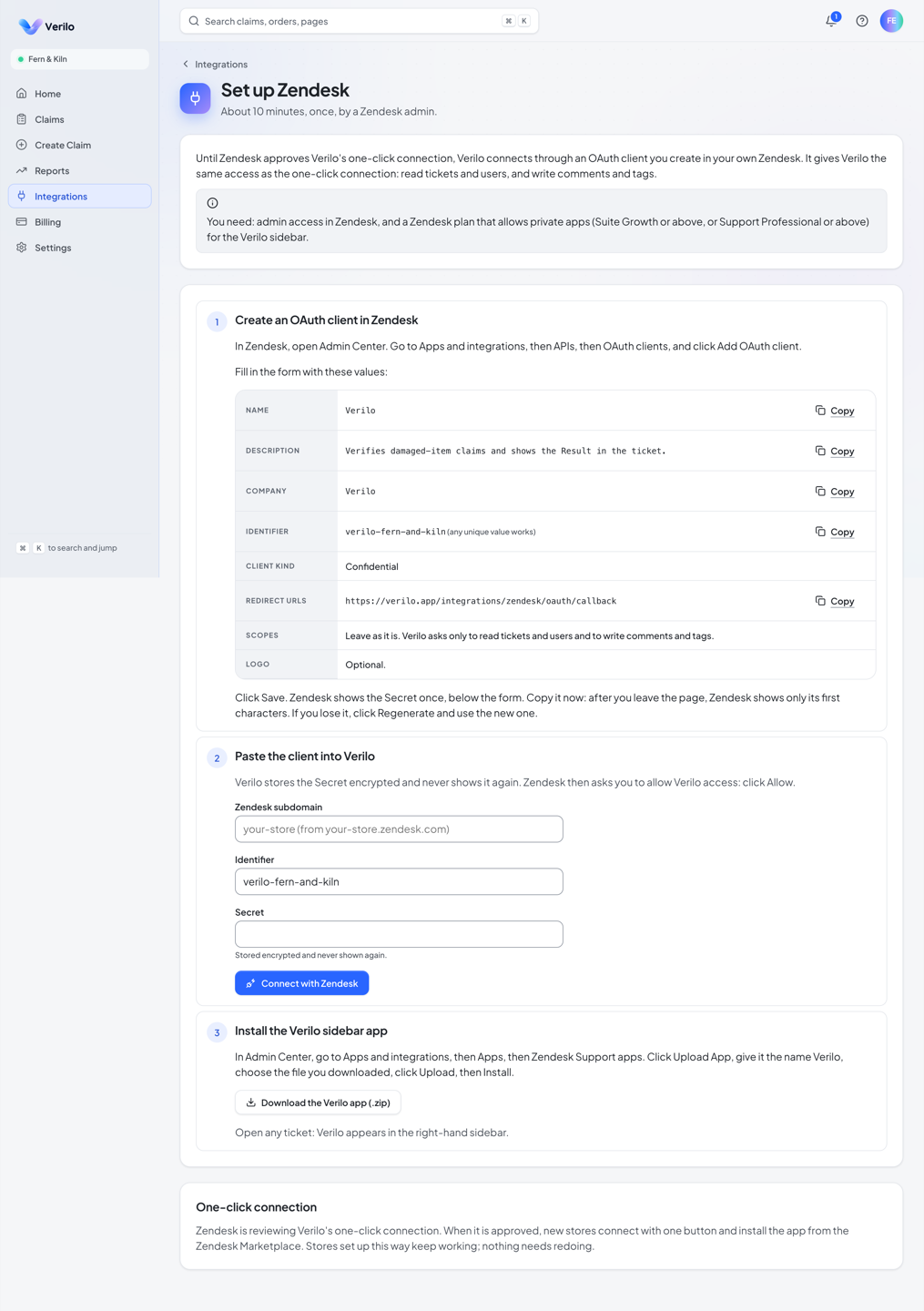
Step 1: Create an OAuth client in Zendesk#
Step 1: In Zendesk, open Admin Center, then Apps and integrations → APIs → OAuth clients, and click Add OAuth client.
Step 2: Fill in the form with the values from the Set up Zendesk page.
| Field | Value |
|---|---|
| Name | Verilo |
| Description | Verifies damaged-item claims and shows the Result in the ticket. |
| Company | Verilo |
| Identifier | verilo-{your store name} (any unique value works) |
| Client kind | Confidential |
| Redirect URLs | https://verilo.app/integrations/zendesk/oauth/callback |
| Scopes | Leave as it is. |
| Logo | Optional. |
Step 1: Click Save, then copy the Secret.
Zendesk shows the Secret once, below the form. After you leave the page it shows only the first characters. If you lose it, click Regenerate and use the new one.
Step 2: Paste the client into Verilo#
Step 1: On the Set up Zendesk page, enter your Zendesk subdomain, the Identifier and the Secret.
The subdomain is the first part of your Zendesk address: "your-store" from your-store.zendesk.com. Verilo stores the Secret encrypted and never shows it again.
Step 2: Click Connect with Zendesk, then click Allow on the Zendesk page.
Zendesk asks you to allow Verilo access to read tickets and users and to write comments and tags.
You should see: "Zendesk is connected ({your-store}.zendesk.com). Install the Verilo sidebar app to use it in tickets."
Step 3: Install the Verilo sidebar app#
Step 1: On the Set up Zendesk page, click Download the Verilo app (.zip).
Step 2: In Zendesk Admin Center, open Apps and integrations → Apps → Zendesk Support apps and click Upload App.
Step 3: Name it Verilo, choose the file you downloaded, click Upload, then Install.
Step 4: Open any ticket.
You should see: Verilo in the right-hand sidebar of the ticket.
Confirm it is working#
- On the Zendesk card in Verilo Integrations, click Test connection. You should see "Zendesk answered: connected to {your-store}.zendesk.com as {your name or email}."
- The card's Sidebar app row changes from "Not opened yet" to "In use" once an agent has opened a ticket with the app.
- Send a test link to yourself from a ticket whose requester is you, and open it on your phone.
Use Verilo in Zendesk#
What the sidebar app shows#
The app shows only what applies: the Order and how it was Matched by, a Tracking warning if the order has no tracking number, Delivered, your Status, Progress, the Result with its summary and strong and weak signals, the Outcome, and the customer's other claims with your store. It refreshes by itself: every few seconds while a link is out, and every minute otherwise.
Verilo matches the ticket to an order the same way in every helpdesk: a claim already on the ticket, an order an agent chose with Choose order or item, an order number in the ticket (such as "#1005"), or the requester's latest order. See How the ticket is matched.
Send the Verification Link#
Step 1: Click Send Verification Link in the Verilo app.
Verilo creates the claim and adds your store's link message, with the link, to a public reply. Nothing has gone to the customer yet.
You should see: "Link added to your reply. Submit the reply to send it to the customer."
Step 2: Edit the reply if you want, then submit it.
Keep the link in the reply.
You should see: "Link sent. The Result will appear here as soon as the customer finishes." Verilo adds an internal note and the tag verilo-requested.
Result, notes and tags#
When the customer finishes, Verilo posts the Result as an internal note ("Verilo Result: {Result}." with the strong and weak signals and a Full evidence link) and adds a tag: verilo-verified, verilo-needs-review or verilo-unable-to-verify. An expired link adds verilo-link-expired. Notes and tags are written as the Zendesk user who approved the connection.
Record the Outcome#
Under Record Outcome, choose Refund Issued (opens Shopify), Replacement Sent (opens Shopify), Return Required, Claim Rejected or Other. Choices that close the claim ask first: the button changes to "Confirm: …" and a second click within six seconds records it. Undo Outcome works for 24 hours. Cancel Claim works until a Result exists. Open full evidence opens the claim in Verilo.
Automatic links#
Verilo can send the link from a Zendesk ticket by itself when it matches your rules. An automatic link is posted as a public reply from the connected Zendesk user, not added to an agent's reply. See Automatic links.
Troubleshooting#
I cannot upload the Verilo app in Zendesk#
Why it happens
- Your Zendesk plan does not allow private apps (Suite Team and Support Team).
How to fix it
- Private apps need Suite Growth or above, or Support Professional or above. Without the app you can still send links from the Verilo dashboard: see Verifications.
"Paste the full Secret Zendesk showed when you saved the client"#
Why it happens
- The Secret was copied only in part, or Zendesk now shows only its first characters.
How to fix it
- In Zendesk, open the OAuth client, click Regenerate, copy the new Secret, and paste it into Verilo.
"Zendesk did not accept the connection"#
Why it happens
- The Identifier and Secret are from different OAuth clients, the client kind is not Confidential, or the Redirect URL is not exactly https://verilo.app/integrations/zendesk/oauth/callback.
How to fix it
- Check the three values in Zendesk Admin Center, fix them, and click Connect with Zendesk again.
"The Zendesk connection did not complete (the request expired or did not match)"#
Why it happens
- More than 10 minutes passed before you clicked Allow, or you allowed it in another browser.
How to fix it
- Start again from Integrations → Set up Zendesk and allow within 10 minutes.
The sidebar app says Verilo "could not confirm this Zendesk account"#
Why it happens
- Zendesk is not connected to Verilo, or was disconnected. The message ends "…is not connected to a Verilo store".
How to fix it
- Connect Zendesk again in Verilo (Step 2), then reload the ticket.
The Zendesk card says "Reconnect needed"#
What you see
"Zendesk no longer accepts Verilo's access. Reconnect to restore it; you approve access in Zendesk again."
Why it happens
- The access was revoked in Zendesk, the OAuth client was deleted, or its Secret was regenerated.
How to fix it
- If the client and Secret are unchanged, click Reconnect {your-store}.zendesk.com and allow access.
- If you regenerated the Secret or deleted the client, click Set up Zendesk and repeat Step 2 with the new values.
"This Verilo session has ended. Reload the ticket."#
Why it happens
- The ticket was open for a long time.
How to fix it
- Reload the ticket.
"No order matched this ticket"#
Why it happens
- The ticket names no order number and the requester's email has no orders in your store.
How to fix it
- Click Choose order or item, search by order number, pick the item, then wait up to a minute for the app to update.
- Or add the order number to the ticket (for example "#1005").
Disconnect or reconnect#
On the Zendesk card in Verilo, click Disconnect and confirm. Verilo revokes its access in Zendesk and forgets the OAuth client's Secret. Results are no longer posted to tickets; claims and evidence stay in Verilo.