 Integrations
Intercom integration guide
With Verilo connected, your teammates send a Verification Link from an Intercom conversation and see the Result there, from the Verilo app in the conversation sidebar.
Last checked against the product on
On this page
What the integration does#
- The Verilo app in the Inbox conversation sidebar shows the Shopify order, the claim's progress and the Result.
- Send Verification Link replies to the customer in the conversation, as the teammate who clicked.
- Internal notes and tags record each step, and the Result arrives as a note with a tag.
- Record Outcome from the app. Refund Issued and Replacement Sent then offer a button to open the order in Shopify.
Before you start#
| You need | Why |
|---|---|
| Verilo installed on your Shopify store, with a plan approved | See Getting started. |
| The Data Processing Agreement accepted in Verilo | Needed before the first link. |
| An Intercom workspace, and a teammate who can install apps in it | The teammate who approves Verilo must have verified their email address in Intercom. |
| An Admin role in Verilo | Only a Verilo Admin can connect a helpdesk. |
Connect Intercom#
Step 1: In Verilo, open Integrations and find the Intercom card.
Step 2: Click Connect with Intercom.
Intercom opens and asks you to sign in if needed, then to approve access. Verilo reads conversations and contacts, and writes notes, replies and tags.
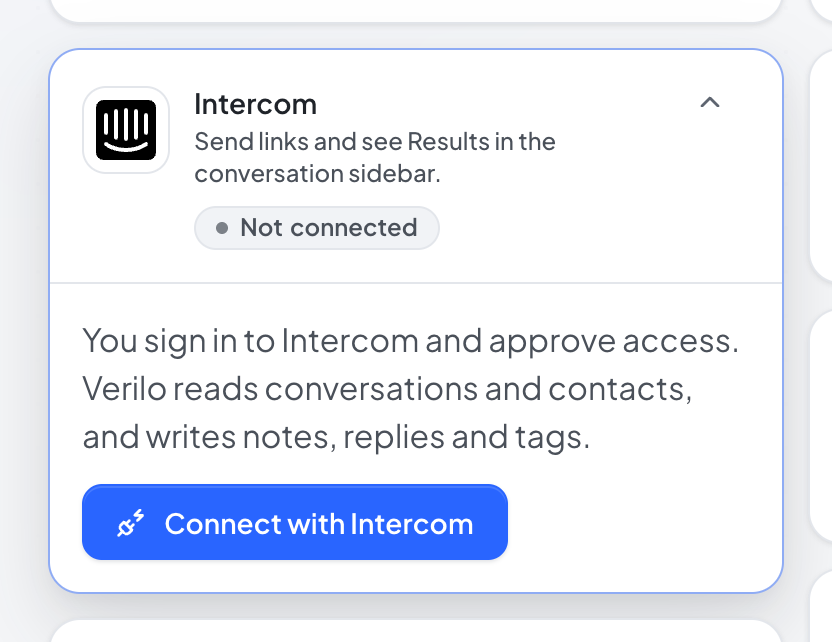
The Intercom card on Verilo's Integrations page. Step 3: Approve access in Intercom.
You should see: "Intercom is connected. Add the Verilo app to the conversation sidebar in your Inbox to use it."
Step 4: Add Verilo to the conversation sidebar.
In your Intercom Inbox, open a conversation, open the apps list in the right-hand sidebar, and add Verilo.
You should see: The Verilo app in the sidebar, showing the order and Send Verification Link.
Confirm it is working#
- On the Intercom card in Verilo, click Test connection. You should see "Intercom answered: connected to {workspace} as {email}."
- The card shows your workspace, region and who connected it.
- Open a conversation from a customer with a recent order: the Verilo app shows the order.
Use Verilo in Intercom#
What the app shows#
The app shows the Order and how it was Matched by, a Tracking warning if the order has no tracking number, Delivered, your Status, Progress, the Result with its summary and strong and weak signals, the Outcome, and the contact's other claims with your store. Verilo matches the conversation to an order the same way in every helpdesk: see How the ticket is matched.
Send the Verification Link#
Click Send Verification Link. Verilo creates the claim and replies to the customer in the conversation as you, with your store's link message from Settings → Messages. It adds an internal note and the tag verilo-requested, and the app says "Link sent. The Result will appear here as soon as the customer finishes." While the claim is open without a Result, the same button sends a new link.
Result, notes and tags#
When the customer finishes, Verilo posts the Result as an internal note with a tag: verilo-verified, verilo-needs-review or verilo-unable-to-verify. Notes Verilo writes by itself, such as the Result, are written as the teammate who connected Intercom.
Record the Outcome#
Under Record Outcome, choose Refund Issued (opens Shopify), Replacement Sent (opens Shopify), Return Required, Claim Rejected or Other. Return Required, Claim Rejected, Other, Cancel Claim and Undo Outcome ask first: press Confirm, or Back to leave it. After Refund Issued or Replacement Sent, press Open the order in Shopify to act there. Undo works for 24 hours.
Troubleshooting#
"…the Intercom teammate who installed Verilo has not verified their email"#
Why it happens
- The teammate who approved Verilo has not verified their email address in Intercom.
How to fix it
- Verify the email address in Intercom, then click Connect with Intercom again.
"The Intercom connection did not complete (the request expired or did not match)"#
Why it happens
- More than 10 minutes passed before approving, or approval happened in another browser.
How to fix it
- Click Connect with Intercom again and approve within 10 minutes.
The app says "This Intercom workspace is not connected to a Verilo store"#
Why it happens
- Intercom is not connected in Verilo, or was disconnected.
How to fix it
- An Admin connects Intercom in Verilo under Integrations.
"Intercom refused Verilo's access" when testing or using the app#
Why it happens
- Verilo's access was removed in Intercom.
How to fix it
- In Verilo, click Disconnect on the Intercom card, then Connect with Intercom again.
"Verilo could not load this conversation"#
Why it happens
- A temporary problem reading the conversation.
How to fix it
- Close the app and open it again.
- If it keeps happening, email hello@verilo.app.
"No order matched this ticket"#
Why it happens
- The conversation names no order number and the contact's email has no orders in your store.
How to fix it
- Click Choose order or item, pick the order and item, then reopen the app.
- Or ask the customer for the order number in the conversation.
Disconnect or reconnect#
On the Intercom card in Verilo, click Disconnect and confirm: "Verilo's access is revoked, Results are no longer posted to conversations and the Verilo app stops loading. Claims and evidence stay in Verilo." To connect again, click Connect with Intercom. If Verilo could not confirm the revocation, remove Verilo under Settings → Apps in Intercom.